How do you give an employee access to eBox Enterprise?
More and more government messages are arriving in your company's eBox Enterprise. As a business manager, you may want to delegate the retrieval of communications in that eBox to a colleague.
This article assumes that you are already a (co-)access administrator for your company.
Logging in to Access Management
Access to the eBox is not granted via eGov role management, but via the Social Security Access Management application. On the login page, choose to identify yourself as a Company.
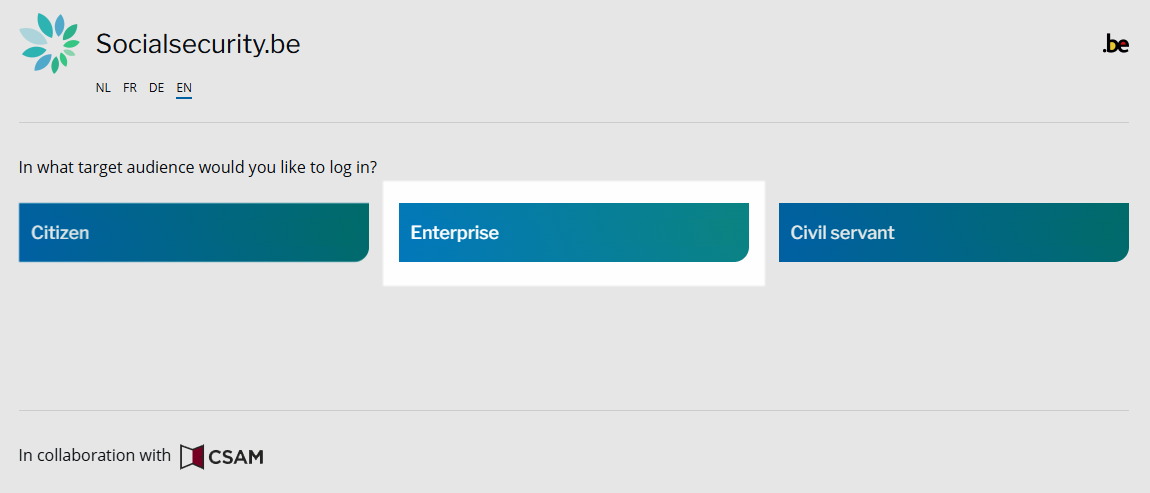
Then log in with, for example, Itsme or your eID card. On the next page, you can choose which company you want to manage. Depending on your situation, choose Company without personnel (Onderneming zonder personeel) or Employer RSZ (Werkgever RSZ).

Tip: can't see the right company here? You may need to appoint yourself as the main access administrator.
Adding users
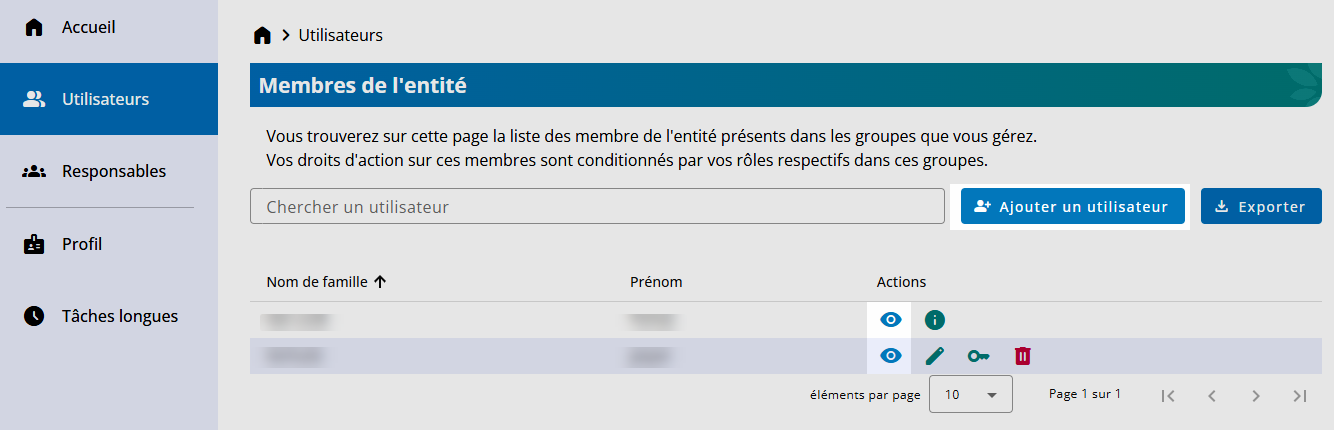
Unfortunately, the user interface of the government portal is not available in English from here on, so we're assuming you continue in the French version. Select Utilisateurs (Users) in the menu on the left. If the colleague you want to grant rights to is already in the list, click on the icon next to their name. If not, click on Ajouter un utilisateur (Add a user).
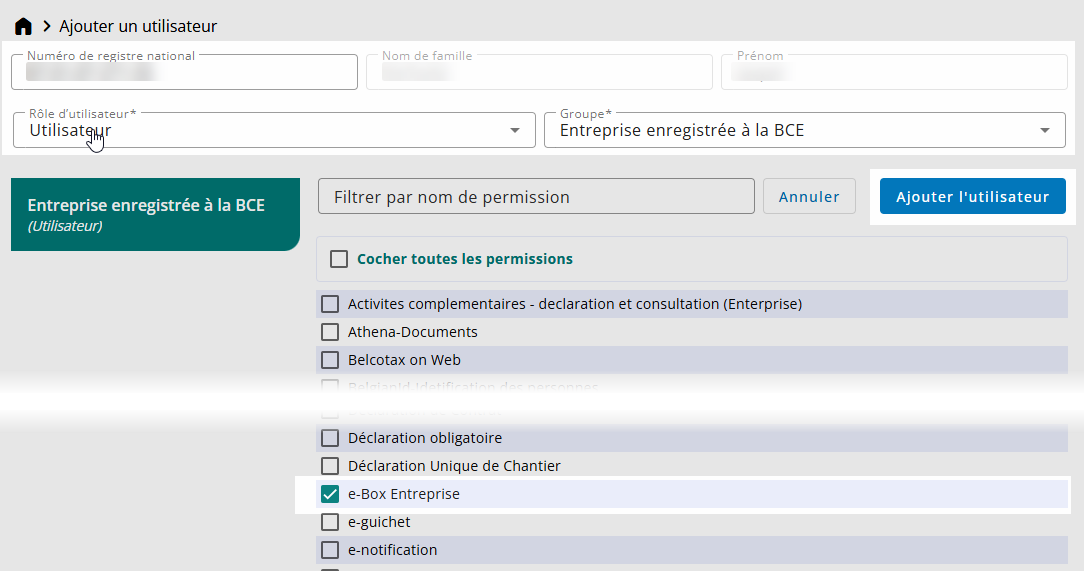
In the screen to add the user, make sure the national registration number is filled in, check e-Box Company, and confirm with Ajouter l'utilisateur (Add the user).
If you are modifying an existing user, first click on Editer on the user page, filter on Toutes les permissions, and select e-Box Enterprise.
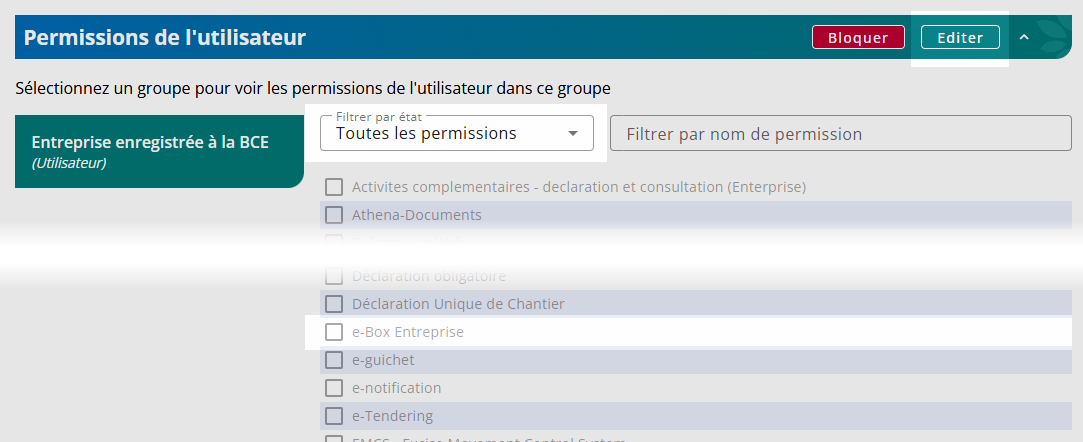
After saving, the user will be able to log in to eBox Enterprise.
And... repeat
Want to do this for multiple companies? Unfortunately, you'll have to log out using the button at the top right and start all over again for the next company.
Your employee will also have to log in and out for each company individually in order to retrieve eBox messages.
Adjust your notifications
Giving an employee access to eBox Enterprise does not mean they will automatically be notified when a new message is received. This means you risk missing important communications.
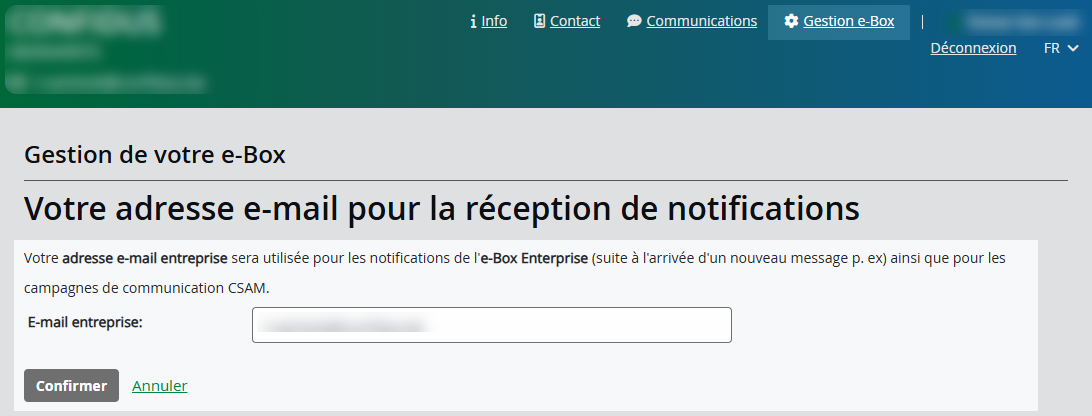
If you want your employee to be notified of a new message, you will also need to log in to your eBox Enterprise. There you can enter the email address for notifications. Unfortunately, only one email address is supported.
Don't forget your offboarding processes
Many companies forget to change the rights in the government portals when an employee leaves the company. As a result, a former employee may retain access to sensitive information.
So don't forget to verify after each offboarding whether the employee still has rights, e.g., in Social Security Access Management and eGov role management.
Looking for an easier solution?
As you can see, there is quite a lot involved in delegating access to your eBox Enterprise. If you are looking for a simpler solution, Boxflow may be right for you:
The application automatically retrieves all your messages from both eBox Enterprise and MyMinfin.
The messages can be sent to the right person or team, or even directly to your server, cloud drive, or ERP or other software, using smart automation.
Your employees do not need to obtain rights via the government portals, and thanks to our login with your existing Google or Microsoft 365 accounts, access can be automatically revoked when someone leaves the company.
And all this works for 1, but also for 100 companies, all neatly in one environment.
Boxflow is available from as little as €5 per month.