Receive eBox messages for other companies via mandates
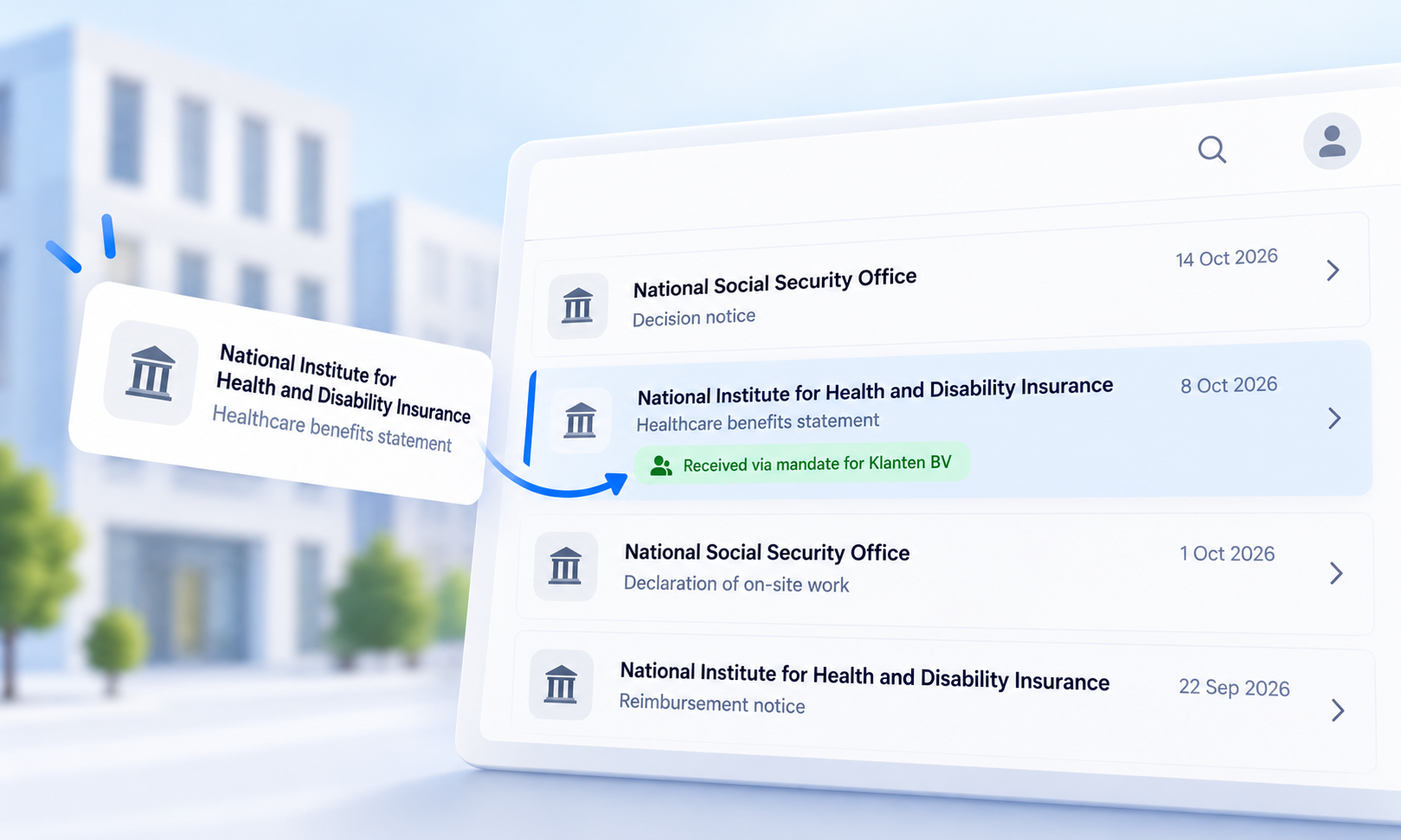
Social secretariats, accountants, and payroll firms receive messages in their e-Box not only for themselves but also messages concerning their clients.
Boxflow now automatically recognizes these messages, links them to the correct client file, and lets you apply separate automations to them.
In this article, we explain:
in which situations a company receives messages intended for another company in its e-Box
how to set up such a mandate with the government, step by step
how Boxflow processes these messages
1. Who receives messages intended for other companies?
Every Belgian company has exactly one e-Box Enterprise, managed by the RSZ. Messages addressed to your own company number are delivered there. You’ll only receive messages regarding another company if you act as that company’s authorized representative with the social security agency.
This applies to:
accredited social secretariats (ESS), which manage payroll administration and RSZ filings for their affiliated employers;
social service providers: bookkeepers and accountants, payroll and HR service providers, or other intermediaries who fulfill social obligations on behalf of an employer (or a company without employees), such as Dimona and DmfA declarations.
The RSZ defines a mandate as “a right granted by one identified entity to another identified entity to perform specific legal acts in its name and on its behalf.” Once such a mandate is active, messages related to those tasks (notifications regarding declarations, Mahis notifications about the mandate itself, etc.) are delivered to the agent.
Previously a separate “e-Box Mandataris,” now a single e-Box Enterprise
Until recently, authorized representatives received these messages in a separate online service, the e-Box Authorized Representative. As of July 15, 2026, the e-Box Enterprise replaces all previous e-Boxes: messages you receive as an authorized representative are now also available in your e-Box Enterprise, in a separate “Authorized Representative partition.” The old e-Box Mandataris will remain accessible until March 31, 2027.
Please note: a tax mandate is not an e-Box mandate
A tax mandate (created via the CSAM mandate system for MyMinfin, Intervat, Biztax, etc.) gives you access to your client’s tax applications, but not to their e-Box. You will therefore continue to access documents from the FPS Finance for your clients via MyMinfin (or via the MyMinfin link in Boxflow); they will not appear in your e-Box.
Receiving messages for other companies in your e-Box, therefore, relates to social security mandates. You set these up in Mahis.
2. Step-by-Step Guide: Setting Up a Mandate with the Government
Below you’ll find the complete process, from preparation to accessing the messages. If you’re a certified social secretariat, you may skip step B.
Requirements and Preparation
To be able to accept mandates, your company must meet three conditions:
have an active business number;
have no outstanding debts with a government agency;
have an active e-Box Enterprise.
In addition, you need secure access to the social security portal. If you do not yet have this, a legal representative of your company (someone listed in the articles of incorporation and authorized to sign, which can be verified via the KBO’s Public Search) must appoint a Chief Access Administrator via CSAM (“Management of Access Administrators”). This may be the legal representative themselves.
The Access Administrator then assigns the “Management of Mandates” role in the online Access Management service to the employee(s) who will manage the mandates (there is also a “Consultation of Mandates” role, which grants read-only access).
Register your company as a social service provider (not applicable to accredited social secretariats)
As long as your company is not registered as a social service provider with the RSZ, you cannot enter or accept mandates in Mahis. A legal representative must therefore perform the following one-time steps:
Log in to Mahis (via the social security portal) using your eID or itsme.
In the menu, click on “Identification” and select “Identify Yourself.”
Enter your contact information and click “Next.”
You will receive confirmation that your application has been submitted. The RSZ will review it, and you will receive approval (or rejection) in your e-Box Enterprise.
Please note: You must register your first mandate within 6 months of approval. If you do not, your identification as a service provider will be automatically terminated.
Create a mandate for each client in Mahis
You must register a mandate for each client. Both the client (principal) and you (agent) can enter this information, provided the user has an active account with the “Manage Mandates” role. In practice, the service provider usually handles this.
A mandate consists of:
the principal (your client, identified by their business number);
the agent (your company);
the scope of the mandate: one or more groups of applications (e.g., the DmfA-Dimona group). You can find which online services each group includes in the list of application groups on the Mahis page of the Social Security website;
a starting quarter, and, if applicable, an ending quarter.
There are two ways to register the mandate:
Option 1: Entirely online (identification + validation)
Log in to Mahis using eID or itsme.
Create the mandate and select the desired group(s) of applications.
Validate the mandate.
Have the other party validate the mandate as well (a legal representative of your client logs in to Mahis and accepts the mandate).
Option 2: With an electronic power of attorney
Create the power of attorney in Mahis and download the PDF.
Open the PDF in Adobe Acrobat Reader (not in the browser).
Click on your company’s signature field at the bottom and sign using your eID and PIN. You’ll need to use your eID’s signature certificate for this, so you’ll need a card reader. Only legal representatives listed in the KBO can sign.
Save the signed PDF and have your client do the same in their signature field.
Upload the power of attorney with both signatures back into Mahis.
As soon as both signatures are present, an automatic check is performed and the power of attorney is approved immediately. There is a single electronic power of attorney for all application groups.
A paper power of attorney (handwritten signatures, uploaded scan) is now only accepted in exceptional cases, e.g., for foreign companies or if the client does not have a Belgian eID. This is manually verified with the RSZ and therefore does not take effect immediately.
Practical Timing
A mandate becomes active as soon as it has been validated or signed by both parties.
If you want to start in a specific quarter (e.g., if a client changes service providers), enter the mandate no later than the first month of that quarter. The previous mandate will be automatically terminated.
The starting quarter may be no more than one year in the future.
Both the principal and the agent receive a Mahis notification for every action (creation, request, termination, etc.). As an agent, you’ll receive these in your e-Box Enterprise.
Open your e-Box as an agent and set up access
Once your mandates are active, you can view the messages for your clients:
Go to the e-Box Enterprise page on the social security portal and select “Open e-Box as an agent,” or log in to e-Box Enterprise and, when logging in, select the role “Authorized Social Secretariat” or “Service Provider (legal entity)”.
When you log in for the first time, the “Authorized Representative partition” is automatically created. All messages you receive as an authorized representative are stored there.
As a (Co-)Access Administrator, you can use Manage e-Box > Manage Partitions to determine which employees have access to that partition. You can create additional partitions and set up routing rules based on organization, online service, or message type.
For the time being, email notifications for messages sent to authorized representatives are sent exclusively to the email address registered in the (old) e-Box Authorized Representative. So please check whether that address is still correct.
3. How Boxflow processes these messages
Boxflow retrieves your e-Box messages via the official e-Box Enterprise integration. Messages you receive as an authorized representative come in through the same connection, so you don’t need to configure anything extra in Boxflow.
What is new, however, is what Boxflow does with those messages.
The correct client file, automatically
A message received via a power of attorney is technically addressed to your e-Box, but its content pertains to your client. Boxflow therefore determines for each message which company it concerns, in order of reliability:
the recipient’s business number provided by the government;
the message’s metadata (e.g., your client’s employer number or KBO number);
a company number in the subject line or the file name of the attachment.
Boxflow never guesses: if a message contains multiple different company numbers, or if none can be found, the message is labeled “Received on behalf of an unknown company” and remains assigned to your own company. This allows you to follow up on it yourself (see below).
Clients are automatically added as companies
If Boxflow recognizes a customer who does not yet exist in your workspace, that customer is automatically added as a company, using the official name from the KBO. The administrators of your workspace will receive a notification with a link to the company profile. On that profile, you can also see through which company the messages for this company are coming in.
An authorized company is treated as a full-fledged company in Boxflow. This means that everything you’re already familiar with regarding individual companies applies:
Access rights per company: a file manager sees only the messages from the customers to whom they have access, even if they all came in via your e-Box.
Automations per company: Assign messages from customer X to the team or person managing that file, forward them via email or to SharePoint, and so on.
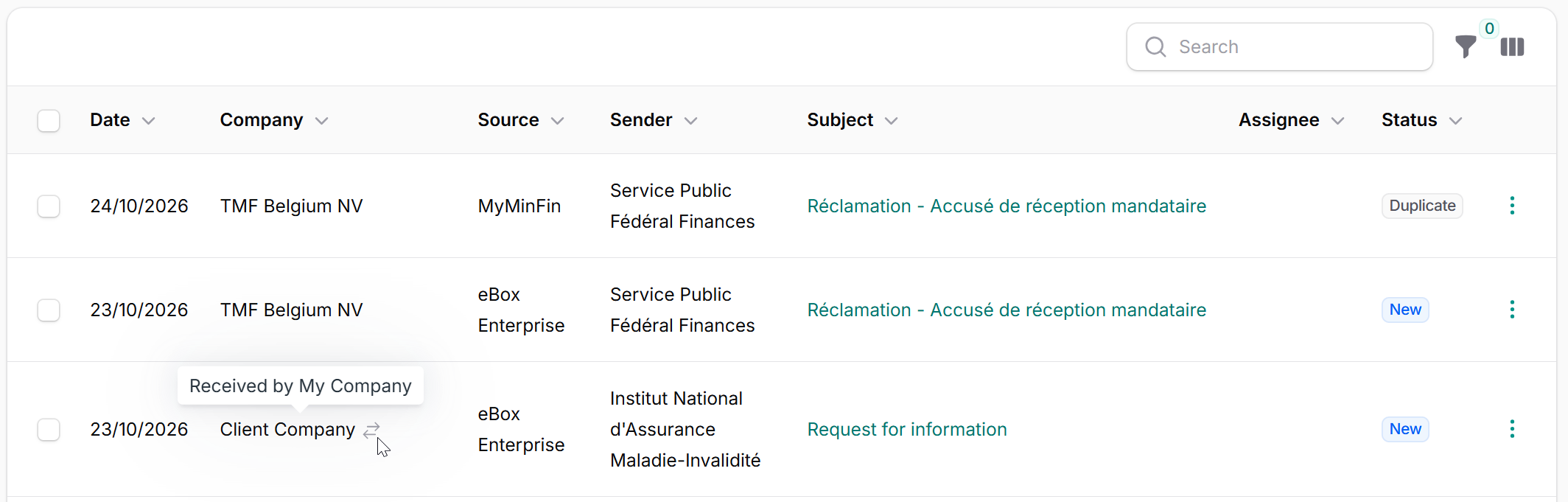
In the message list, you can recognize proxy messages by the icon next to the company name; when you hover over it, you’ll see “Received via [your company].”
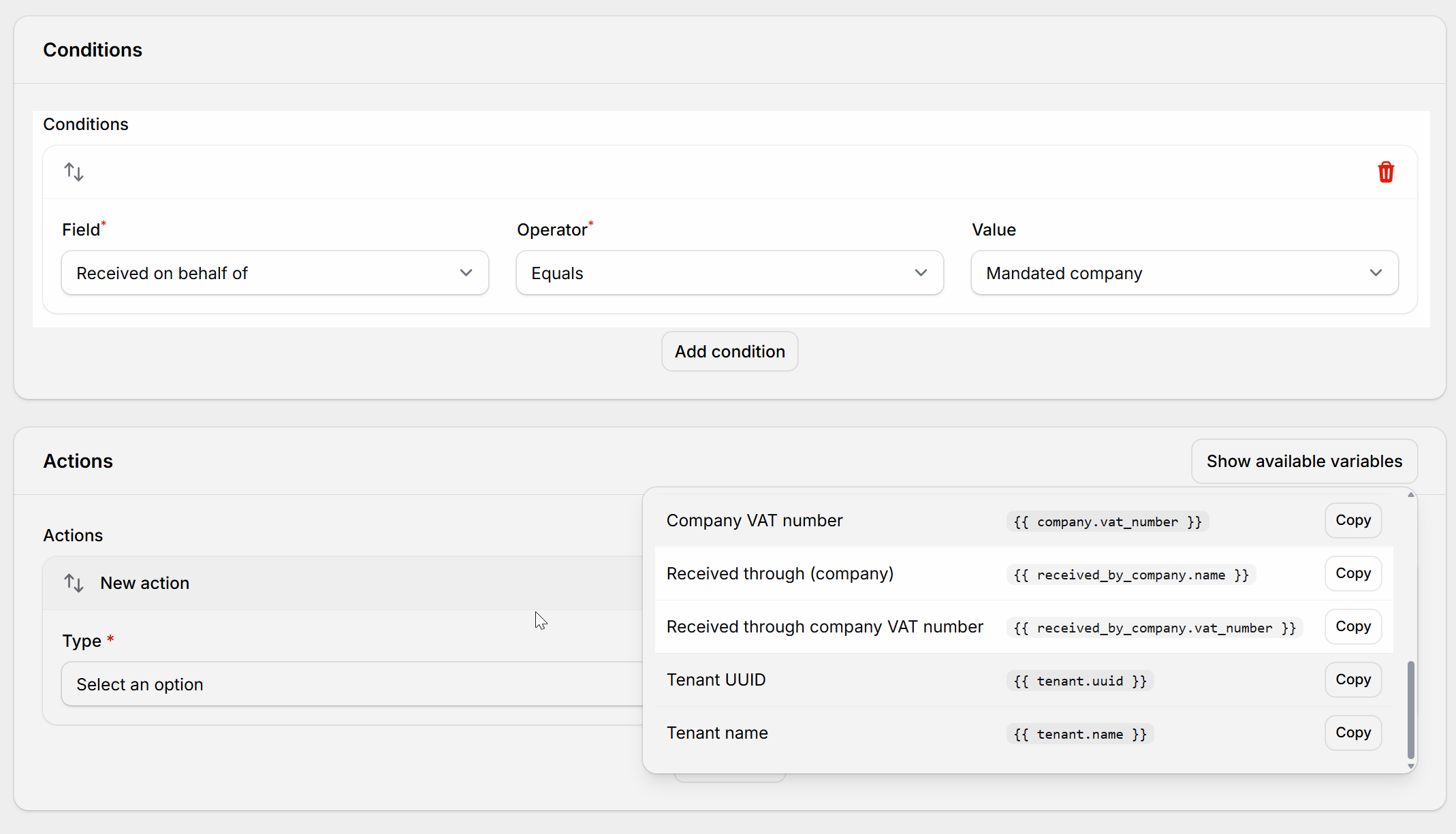
New condition in automations: “Received on behalf of”
In your automations, you can now use the “Received on behalf of” condition, with the value set to “Own company” or “Authorized company.” For example, you can create a separate flow for everything that comes in via authorizations, separate from the mail for your own company.
In addition, there are two new placeholders you can use in emails and actions: “Received via (company)” and the VAT number of the receiving company.
Change Company (including in bulk)
Was Boxflow unable to assign a message, or do you want to link it to a different company? You can do this for individual messages or for a selection of messages at once using the “Change Company” action. Every change is tracked in the message’s audit trail.
Helpful tip: In your automations, you can use the “Message updated” trigger with the “Company updated” type. This ensures your assignment or forwarding rules are automatically re-executed as soon as you’ve linked a message to the correct customer file.
Also via the API
Do you use the Boxflow API or webhooks? Each message now includes the fields received_on_behalf, received_by_company (the company through whose e-Box the message was received) and company_resolution (how the company was identified). You can also filter by received_on_behalf and by received_by_company_uuid.
4. Recommended setup for service providers
A setup that works well in practice:
A single automation rule for unknown mandate messages: condition “Received on behalf of” = “Authorized company” and company = your own company. Assign those messages to an administrator so nothing gets overlooked. Once the administrator has set the correct company, the other rules take over.
One automation per client (group) based on the company: assignment to the file manager, email to the team, or archiving in SharePoint.
Set access rights per company so that confidential messages (e.g., a client’s social security reminders) are visible only to the person managing that file.
In conclusion
With the integration of e-Box Mandataris into e-Box Enterprise, all government communications for you and your clients are consolidated in one place. That’s efficient, but it also requires careful triage: which message belongs to which client, and who should follow up on it? That’s exactly what Boxflow now handles for you.
Do you have questions about setting up your mandates or your Boxflow automations? We’re happy to help.
Sources (last accessed on 10/24/2026):
Social Security – e-Box Enterprise: https://www.socialsecurity.be/site_nl/general/helpcentre/ebox/index.htm
e-Box Enterprise – Migration FAQ: https://www.eboxenterprise.be/nl/faq/migratie-naar-ebox-enterprise.html
e-Box Enterprise – FAQ Partitions (Authorized Representative Partition): https://www.eboxenterprise.be/nl/faq/partities.html
Social Security – Mahis: https://www.socialsecurity.be/site_nl/employer/applics/mahis/index.htm
Social Security – How to Grant or Receive a Power of Attorney: https://www.socialsecurity.be/site_nl/employer/applics/mahis/general/what_mandate.htm
Social Security – Identifying a Business as a Social Services Provider: https://www.socialsecurity.be/site_nl/employer/applics/mahis/general/identify_employer_as_payroll_service.htm
Social Security – Mahis FAQ: https://www.socialsecurity.be/site_nl/employer/applics/mahis/general/faq.htm
Social Security – Manage access for my company: https://www.socialsecurity.be/site_nl/employer/infos/secured_access/enterprise_access.htm
CSAM – Managing Authorizations: https://www.csam.be/nl/beheer-mandaten.html
ITAA – eBox Enterprise and documents from the FPS Finance (March 17, 2026): https://www.blogitaa.be/2026/03/17/ebox-enterprise-en-de-documenten-van-de-fod-financien/